 condoo.Vibe
xAI (Grok)
Connect xAI to power AI assistants, generation, extraction, and analysis features with Grok inside apps you build with condoo.Vibe.
The xAI connector lets applications you build with condoo.Vibe use Grok models for AI-powered features.
You can use Grok inside your application for experiences such as:
- AI assistants
- Content generation
- Summarization
- Classification
- Data extraction
- Customer support
- Research-style workflows
- Structured analysis
- AI-powered automations
Once xAI is connected, tell condoo.Vibe what you want Grok to do inside your product.
Connect xAI. Define the AI experience. condoo.Vibe builds the workflow around Grok.
condoo.Vibe vs Grok
condoo.Vibe is the platform you use to build and evolve your application.
Grok can then power individual AI features inside that application.
For example:
Build a social media intelligence dashboard with saved topics, monitored accounts, alerts, and reporting.
condoo.Vibe builds the product.
Then:
Add an AI Insight feature using Grok that summarizes the most important developments around a monitored topic.
Grok powers the AI step inside the experience.
Before You Start
You'll need access to xAI's API and the credentials required by condoo.Vibe's xAI connector.
API usage may incur charges according to your xAI account, selected model, and request volume.
Connect xAI to condoo.Vibe
Open your condoo.Vibe project and navigate to Connectors.
Find xAI / Grok and select it.
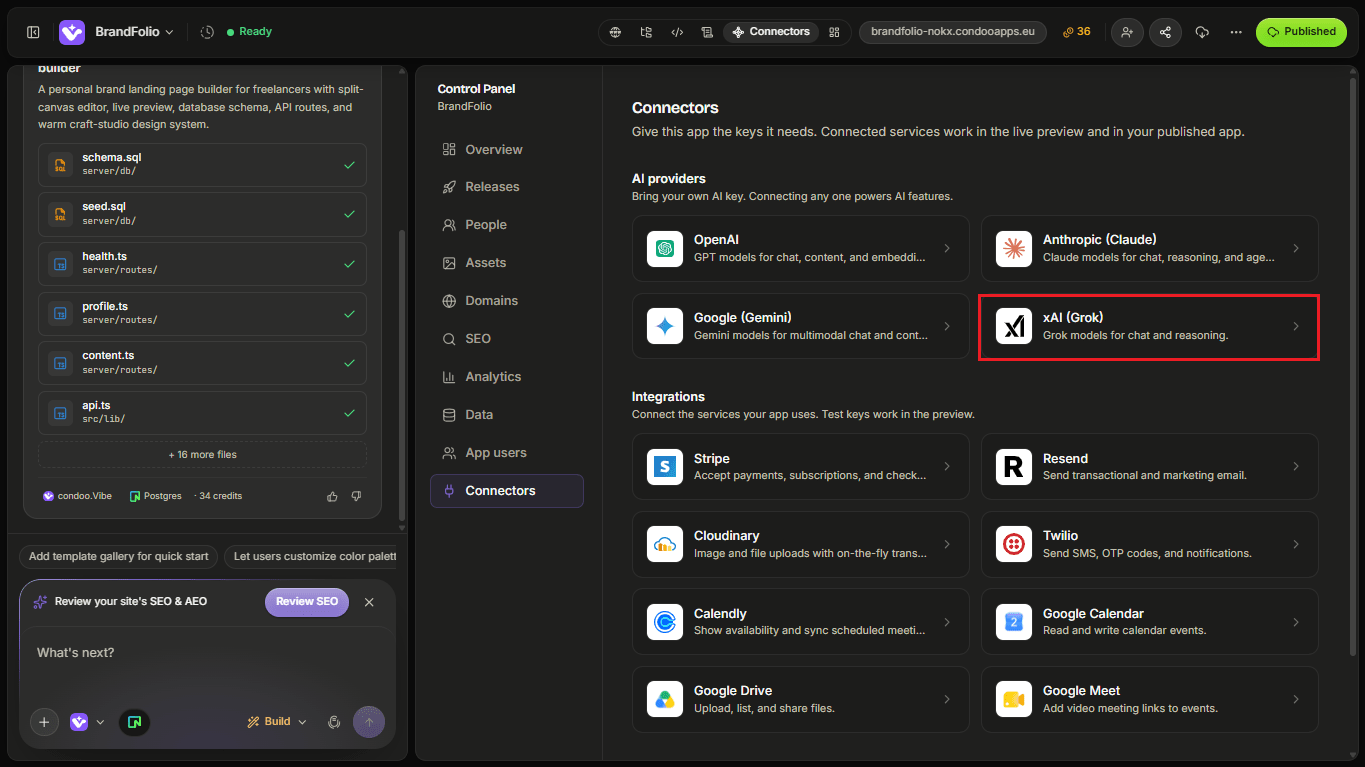
Follow the setup flow and provide the information requested by condoo.Vibe.
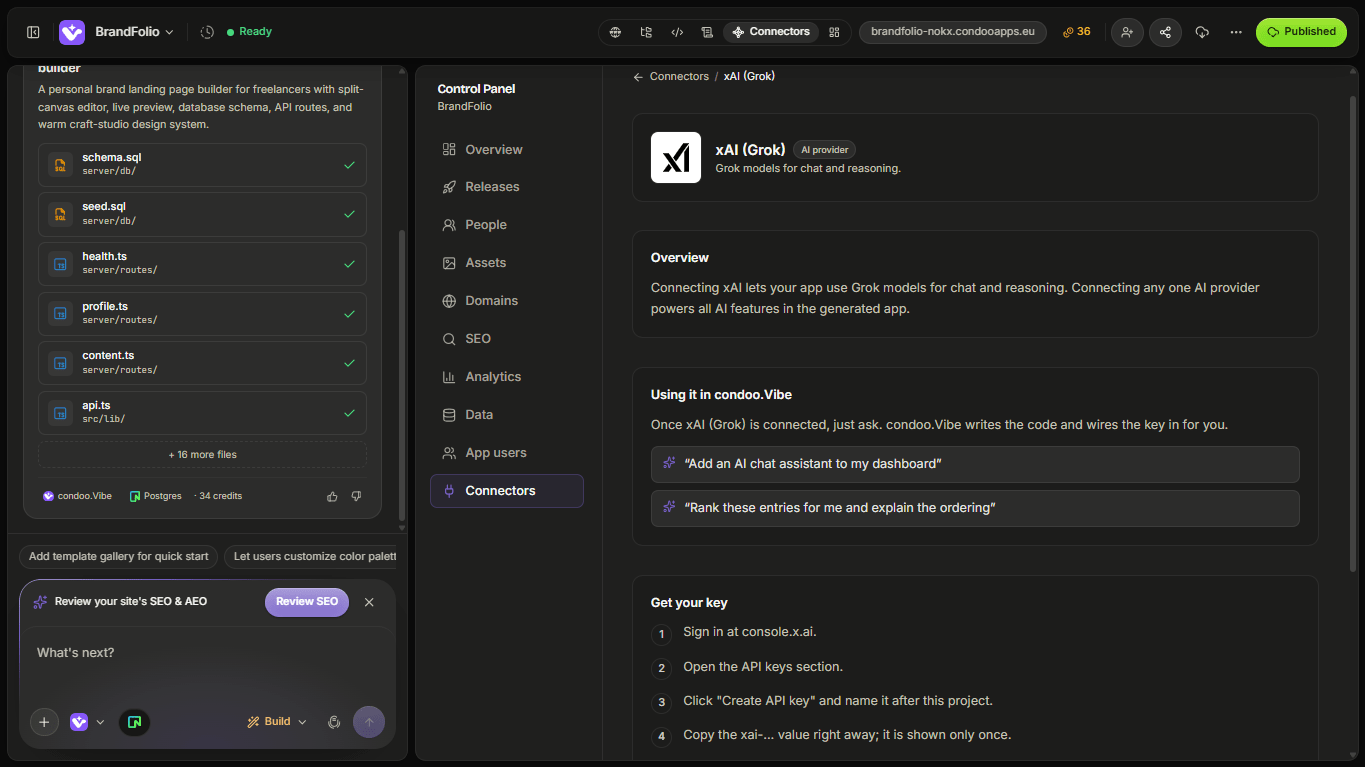
Once connected, Grok becomes available for AI-powered functionality inside your application.
Build Your First Grok Feature
Suppose you're building a market intelligence application.
You could tell condoo.Vibe:
Add an AI Insight Generator using Grok. Users should enter a topic and supporting notes. Generate a concise summary, key developments, risks, opportunities, and three recommended next actions.
The workflow might look like:
Topic + Context
      ↓
Generate
      ↓
Server-Side Logic
      ↓
Grok
      ↓
Structured Result
      ↓
Application
The user interacts with your application.
Grok operates behind the feature.
Define the Input
Tell condoo.Vibe what context Grok should receive.
For example:
Use the user's topic, notes, selected industry, and desired analysis goal.
Or:
Use the support ticket and recent conversation history.
Or:
Use the lead enquiry, budget, status, and activity history.
Only send information that is relevant to the task.
Define the Output
Be clear about what the feature should return.
For example:
Return a short executive summary, three risks, three opportunities, and recommended next actions.
Or:
Return category, urgency, sentiment, and recommended response.
Or:
Extract company name, requirement, budget, timeline, and decision stage.
Structured expectations make it easier for condoo.Vibe to build a useful interface around Grok's response.
Example: AI Research Assistant
Suppose you're building a research workspace.
You could ask condoo.Vibe:
Add a Research Assistant using Grok. Users should provide a research question and notes. Return a concise analysis, major themes, open questions, and recommended areas to investigate next.
You could then extend it:
Allow users to save the generated analysis to the research project and regenerate it later.
That turns a one-time model call into a product workflow.
Example: Lead Analysis
For a CRM:
When a new lead is created, use Grok to analyze their enquiry and generate a short qualification summary containing their likely need, urgency, budget confidence, and recommended sales action. Save the result to the lead record.
Conceptually:
Lead Enquiry
     ↓
Grok Analysis
     ↓
Structured Insight
     ↓
Neon
     ↓
CRM
This makes the AI output part of the application's stored data.
Example: Support Assistant
For a support tool:
Add a Suggested Reply button using Grok. Use the current support ticket and recent customer messages to draft a response. Show the result in the reply editor and require an agent to review it before sending.
This keeps a human in control of customer communication.
Example: Content Generation
Suppose you're building a marketing application.
You could ask:
Add a Grok-powered content generator. Users should provide their offer, audience, platform, tone, and campaign goal. Generate five content ideas and let users expand any one into a full post.
The experience might be:
Campaign Context
      ↓
Grok
      ↓
5 Ideas
      ↓
User Selects One
      ↓
Generate Full Post
      ↓
Edit / Save
Again, Grok is one part of the complete product experience.
Human Review
For higher-impact actions, consider requiring human approval.
For example:
Use Grok to generate a proposed sales response, but don't send it automatically. Show it to the sales representative for editing and approval first.
Conceptually:
Grok Generates
      ↓
Human Reviews
      ↓
Human Approves
      ↓
Action Happens
This can be especially useful when AI output affects:
- Customer communication
- Financial decisions
- Important business recommendations
- Sensitive content
- Irreversible actions
Saving AI Responses
Decide whether Grok output should be temporary or saved.
For example:
Save approved AI summaries to the lead record.
Or:
Don't save generated drafts until the user clicks Save.
Or:
Display the existing saved summary by default and only call Grok again when the user clicks Regenerate.
This affects user experience and API usage.
Avoid Unnecessary Requests
Don't call Grok every time a page loads if the result doesn't need to change.
For example:
Store the generated account summary and display the saved result. Only regenerate it when the account manager requests a new summary.
This can reduce latency and unnecessary API usage.
Model Choice
xAI may offer multiple Grok models with different capabilities, costs, and performance characteristics.
Your choice may depend on:
- Speed
- Cost
- Reasoning needs
- Context requirements
- Output size
- Application volume
You can specify a model when necessary, or describe the product requirement and choose an appropriate supported option.
Loading and Error States
AI features should clearly communicate when generation is happening.
For example:
Generating insight...
If the request fails:
We couldn't generate the insight.

[Try Again]
Tell condoo.Vibe:
Preserve the user's input if the Grok request fails and allow them to retry without starting over.
Sensitive Data
Be deliberate about what information your application sends to an external AI provider.
Avoid sending unnecessary sensitive information.
For applications handling private business or customer information, make sure the workflow aligns with your privacy and compliance requirements.
Common Problems
Grok feature doesn't respond
Check whether:
- The xAI connector is configured correctly
- The application is making the request
- xAI returns an error
- The application receives the response
- The result is displayed correctly
Use Debug Mode with the exact behavior you observe.
Output quality is poor
This may be an instruction or context problem rather than a connector issue.
For example:
The generated lead insights are too generic. Improve the Grok prompt so every result identifies the lead's need, urgency, budget confidence, objections, and recommended next action.
Output structure is inconsistent
If your application expects structured fields, make that requirement explicit.
For example:
Ensure Grok always returns summary, risks, opportunities, and nextActions in a predictable structured format and validate the result before saving it.
Responses are slow
Ask condoo.Vibe to inspect:
- Model selection
- Context size
- Output length
- Number of model calls
- Application workflow
Usage is unexpectedly high
Check whether the feature is calling Grok too often.
For example:
Audit this feature and make sure the account summary isn't regenerated on every page load.
Debugging xAI
A strong Debug Mode prompt could be:
Expected: Clicking Generate Insight should analyze the lead and show a structured summary.
Actual: The loading state appears, but no result is displayed.
The lead data itself loads correctly.
Error: [PASTE ERROR IF AVAILABLE]
Debug the xAI/Grok request and response flow without changing the existing lead page.
Do not include the API key in the debugging prompt.
Test Your Grok Feature
Before publishing, test:
- Normal inputs
- Very short inputs
- Long inputs
- Empty input
- Loading states
- Failed requests
- Retry behavior
- Output structure
- Saved results
- Regeneration
- Permissions
- Unexpected user input
- API usage behavior
For higher-impact workflows, also test the human approval step.
A Good Grok Prompt for condoo.Vibe
Define:
Purpose
What should Grok accomplish?
Input
What context does it receive?
Output
What should it return?
User experience
How should the user interact with the result?
Persistence
Should the output be saved?
Permissions
Who can use the feature?
For example:
Add a Grok-powered Lead Insight feature. Authorized sales users can generate an insight from the lead detail page. Use the lead's enquiry, budget, source, status, and recent activity. Return a concise summary, urgency, purchase intent, risks, and recommended next action. Show a loading state while generating, allow manual regeneration, and save approved results to the lead record.
Choosing Between AI Providers
condoo.Vibe supports multiple AI providers so you can choose based on your product requirements.
Your application may use:
- OpenAI
- Anthropic Claude
- Google Gemini
- xAI Grok
You don't need all of them.
Choose based on factors such as:
- Model capabilities
- Cost
- Performance
- Context needs
- Provider preference
- Product requirements
The provider should serve the product, not become the product architecture by accident.
Next: Calendly
We've completed the AI-provider connectors.
Next, we'll move into scheduling with Calendly.
We'll cover how to connect Calendly to condoo.Vibe and use it in applications for:
- Demo bookings
- Consultations
- Sales calls
- Customer onboarding
- Appointment scheduling