 condoo.Vibe
Fixing Errors
Use Debug Mode to describe broken behavior, share errors, and let condoo.Vibe find the root cause without rebuilding working features.
Errors can happen while building software.
A feature may not behave as expected. A form may stop submitting. An integration may fail. A page may not load. Or condoo.Vibe may encounter an error while implementing a change.
When that happens, you don't necessarily need to understand the underlying code yourself.
Use Debug Mode to give condoo.Vibe the problem and let your AI product team investigate what went wrong.
Describe what happened. Let condoo.Vibe investigate the cause. Fix the underlying problem.
When to use Debug Mode
Use Debug Mode when something that should work doesn't.
For example:
Users can create an account, but after signing in they're redirected back to the login page.
Or:
When I click Create Workspace, nothing happens and the browser console shows an error.
Or:
Stripe checkout completes successfully, but the user's subscription isn't updated in the dashboard.
These are different from normal Build requests.
You're not asking condoo.Vibe to create something new.
You're asking it to investigate existing behavior and determine why it isn't working correctly.
Start with what you can observe
You don't need to diagnose the problem before talking to condoo.Vibe.
Start by describing what you see.
For example:
The contact form isn't working.
That's enough to begin, but you can make the request more useful by adding context:
The contact form displays correctly, but when I click Submit nothing happens. The form should save the enquiry and show a success message. Debug the complete submission flow and fix the underlying issue.
The second prompt gives condoo.Vibe three useful pieces of information:
What exists:
The contact form.
What should happen:
The enquiry should be saved and a success message displayed.
What actually happens:
Nothing happens after clicking Submit.
A simple debugging prompt formula
When possible, structure your debugging request around:
Expected behavior → Actual behavior → Error → Reproduction steps
For example:
When a user clicks Create Workspace, a new workspace should be created and the user should be redirected to its dashboard. Instead, the button enters a loading state and nothing else happens. The browser console shows a 500 error. This happens every time I create a workspace. Debug the complete workspace creation flow and fix the root cause.
You don't need all four pieces every time.
Give condoo.Vibe whatever information you have.
Use Debug Mode
Select Debug from the condoo.Vibe mode selector.
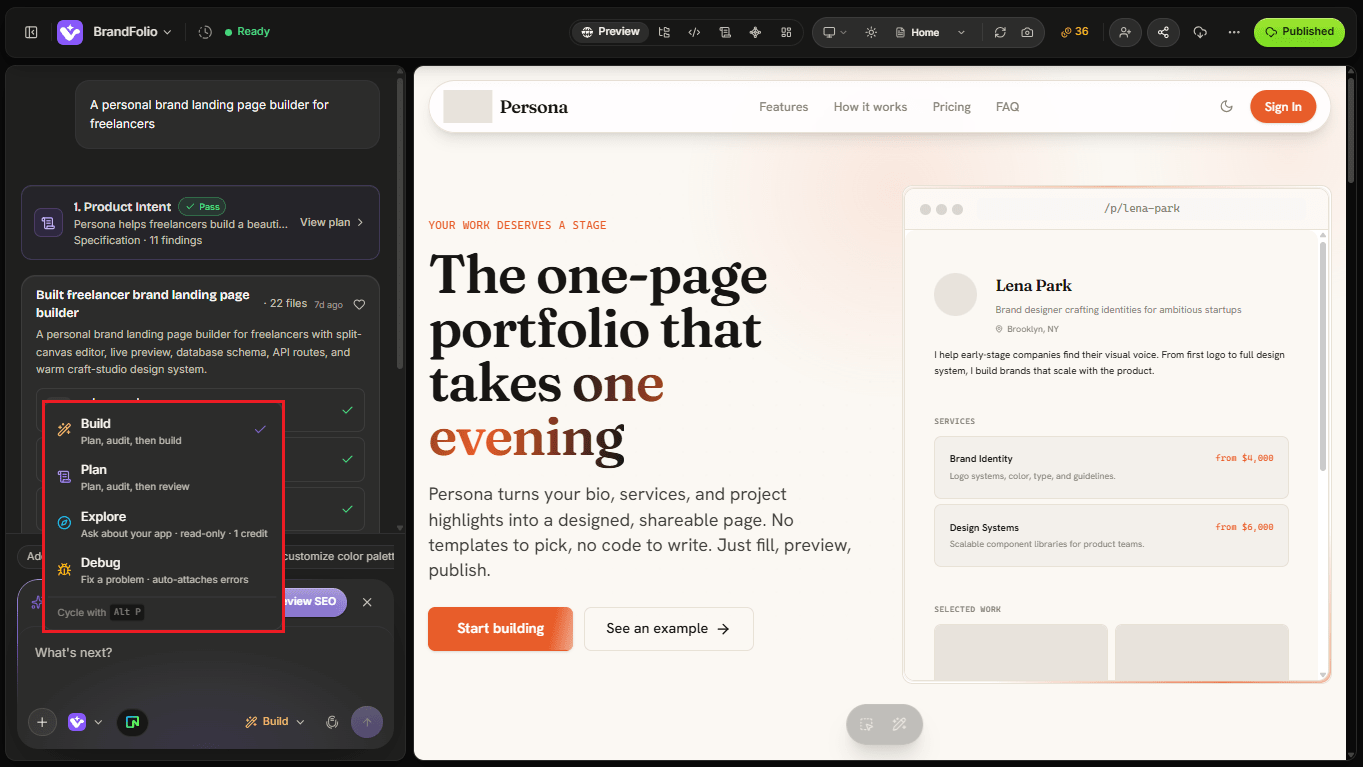
Then describe the problem.
condoo.Vibe can investigate the application and determine what may be causing the issue.
Depending on the problem, this can involve checking areas such as:
- Frontend behavior
- Application state
- API requests
- Server-side logic
- Authentication
- Database operations
- Integrations
- Configuration
- Build behavior
The goal is not simply to hide the visible error.
The goal is to identify and correct the underlying problem.
Give condoo.Vibe the error message
If you have an error message, include it.
For example:
Failed to create workspace: 500 Internal Server Error
Then explain when it happens:
This error appears every time I click Create Workspace. Debug the workspace creation flow and determine why the API is returning 500.
You don't need to understand what the error means before sharing it.
condoo.Vibe can use it as evidence while investigating the problem.
Share reproduction steps
For bugs that only happen during a particular workflow, tell condoo.Vibe how to reproduce them.
For example:
1. Sign in
2. Open Settings
3. Go to Workspace
4. Click Create Workspace
5. Enter a workspace name
6. Click Create
7. The button loads indefinitely
Then explain what should happen instead.
The workspace should be created and opened automatically.
Reproduction steps help condoo.Vibe understand exactly where the failure occurs.
Tell condoo.Vibe what changed
If the problem started after a recent change, mention it.
For example:
This worked before we changed the authentication flow. Since that change, newly registered users can't access the dashboard. Debug the issue without removing the new authentication system.
Or:
File uploads stopped working after we added the new profile page. Existing uploads worked before this change.
This gives condoo.Vibe another useful clue while investigating.
Don't ask condoo.Vibe to rebuild everything immediately
When something breaks, it can be tempting to say:
Rebuild the entire feature.
That isn't always the best first response.
The issue may be caused by one incorrect request, database operation, permission check, or state update.
Instead, start with:
Investigate why this feature is failing, identify the root cause, and fix it without changing unrelated functionality.
This encourages a focused repair.
Protect working functionality
Suppose users can create and edit leads correctly, but deleting a lead fails.
Instead of:
Fix the Leads feature.
Try:
Creating, editing, searching, and filtering leads all work correctly. Only deletion is failing. Debug the delete flow and fix it without changing the existing lead creation, editing, search, or filtering behavior.
This defines the boundary of the repair.
The same principle applies to design.
Fix the form submission issue. Don't redesign the form or change its fields.
Test the fix
Once condoo.Vibe completes the repair, reproduce the original problem again.
If the issue was:
Creating a workspace fails.
Test:
Repeat
Follow the same steps that originally caused the error.
Verify
Confirm that the expected behavior now occurs.
Refresh
Where relevant, refresh the application and make sure the result persists.
Check related behavior
Make sure the fix didn't break nearby functionality.
A bug isn't fixed simply because the error message disappeared.
The expected workflow should work correctly.
If the first fix doesn't work
Sometimes the first attempt won't completely solve a problem.
Don't start the explanation from scratch.
Continue the debugging conversation.
For example:
The 500 error is gone, but the workspace still isn't being created. The button now finishes loading and returns to its normal state. Continue debugging from the current implementation and find out why no workspace record is being created.
Or:
The subscription now updates correctly after payment, but only after refreshing the dashboard. Fix the state update so the new plan appears immediately after checkout.
Each test gives condoo.Vibe additional information.
Debugging can be iterative too.
Visual problems vs functional errors
Not everything that looks wrong is a software error.
For example:
The cards have too much spacing.
That's probably a Build request.
The cards disappear completely on mobile.
That may be a Debug request.
Similarly:
Make the signup form shorter.
→ Build
Clicking Sign Up produces an error.
→ Debug
A simple distinction is:
I want this to work differently → Build
This should already work, but it doesn't → Debug
When the problem is an integration
External services can introduce another layer of debugging.
For example:
Stripe checkout opens correctly, but completed payments aren't activating subscriptions.
Or:
Emails stopped sending after connecting Resend.
Or:
Images appear to upload successfully but don't display afterward.
Tell condoo.Vibe:
- Which integration is involved
- What action you're performing
- What should happen
- What actually happens
- Any error message you see
When to use condoo.Vibe Max
Many bugs are focused enough for condoo.Vibe Min.
For example:
This button links to the wrong page.
Min should usually be sufficient.
But some bugs involve several interconnected systems.
For example:
Google authentication succeeds, but users are sometimes created without a workspace. They can then access the dashboard but API requests fail because no workspace membership exists.
That may involve:
- Authentication
- User creation
- Database transactions
- Workspace creation
- Membership
- Authorization
- Redirect logic
For difficult problems like this, Debug + Max can provide deeper reasoning.
A useful rule is:
Focused bug → Debug + Min
Complex or persistent bug → Debug + Max
A strong debugging prompt
Here's a reusable template:
Something is not working correctly in [FEATURE].

Expected behavior:
[WHAT SHOULD HAPPEN]

Actual behavior:
[WHAT HAPPENS INSTEAD]

Error:
[PASTE ERROR IF AVAILABLE]

Steps to reproduce:
1. [STEP]
2. [STEP]
3. [STEP]

This started:
[AFTER A CHANGE / ALWAYS / UNKNOWN]

Debug the complete flow, identify the root cause, and fix the underlying issue.

Preserve:
[FUNCTIONALITY THAT ALREADY WORKS]
You don't have to fill every section.
Use whatever information you have.
Errors are part of building software
Even with AI-assisted development, software can fail for many reasons.
What changes with condoo.Vibe is how you can approach the problem.
Instead of needing to understand every layer yourself, you can describe the symptoms and work with your AI product team to investigate them.
The debugging loop becomes:
Observe → Describe → Investigate → Fix → Test → Repeat if necessary
Need more specific help?
Later in these docs, the Troubleshooting section provides dedicated guides for common problems, including:
- Project stuck generating
- Preview not loading
- condoo.Vibe generation errors
- Deployment failures
- Domain connection problems
- Credit issues
- Stripe integration problems
- Database problems
- Mobile export errors
Those guides are designed around the specific symptom you're experiencing.
Next: Working with Existing Projects
So far, we've focused heavily on applications created and evolved inside condoo.Vibe.
But you may also have an existing project or codebase you want to continue working with.
Next, we'll cover Working with Existing Projects and how to bring existing development work into your condoo.Vibe workflow.