 condoo.Vibe
One-Click Deployment
Deploy condoo.Vibe projects with a single click. Understand deployment status, updates, debugging, and how condoo.Vibe hosting handles it for you.
condoo.Vibe lets you take the application you've built and deploy it without manually configuring traditional hosting infrastructure.
When your project is ready, you can deploy it directly from condoo.Vibe and make it accessible online.
You don't need to manually:
- Configure a web server
- Upload application files
- Set up a traditional hosting account
- Configure deployment pipelines just to launch
- Transfer files through FTP
- Build your own deployment system
Build your application. Click Publish. condoo.Vibe handles the deployment.
What Is Deployment?
Deployment is the process of taking the application you've built and making it available in a live environment.
While building, you work with your project inside condoo.Vibe.
Deployment takes that project and makes it accessible through a live URL.
condoo.Vibe PROJECT
     ↓
BUILD
     ↓
DEPLOY
     ↓
LIVE APPLICATION
condoo.Vibe handles this process for you.
Publishing vs Deployment
You'll often hear the words publish and deploy used together.
In condoo.Vibe, you can think about them like this:
Publish is the action you take.
Deployment is the process that gets your application online.
For example:
You Click Publish
        ↓
condoo.Vibe Starts Deployment
        ↓
Application Prepared
        ↓
Application Goes Live
        ↓
Live URL Available
You don't need to manage the underlying deployment infrastructure yourself.
Deploy Your Project
When you're ready to make your application live, click Publish inside your condoo.Vibe project.
[INSERT SCREENSHOT: Publish button inside condoo.Vibe]
condoo.Vibe begins preparing and deploying your application.
You'll see the deployment process while condoo.Vibe gets your project ready.
[INSERT SCREENSHOT: condoo.Vibe deployment in progress]
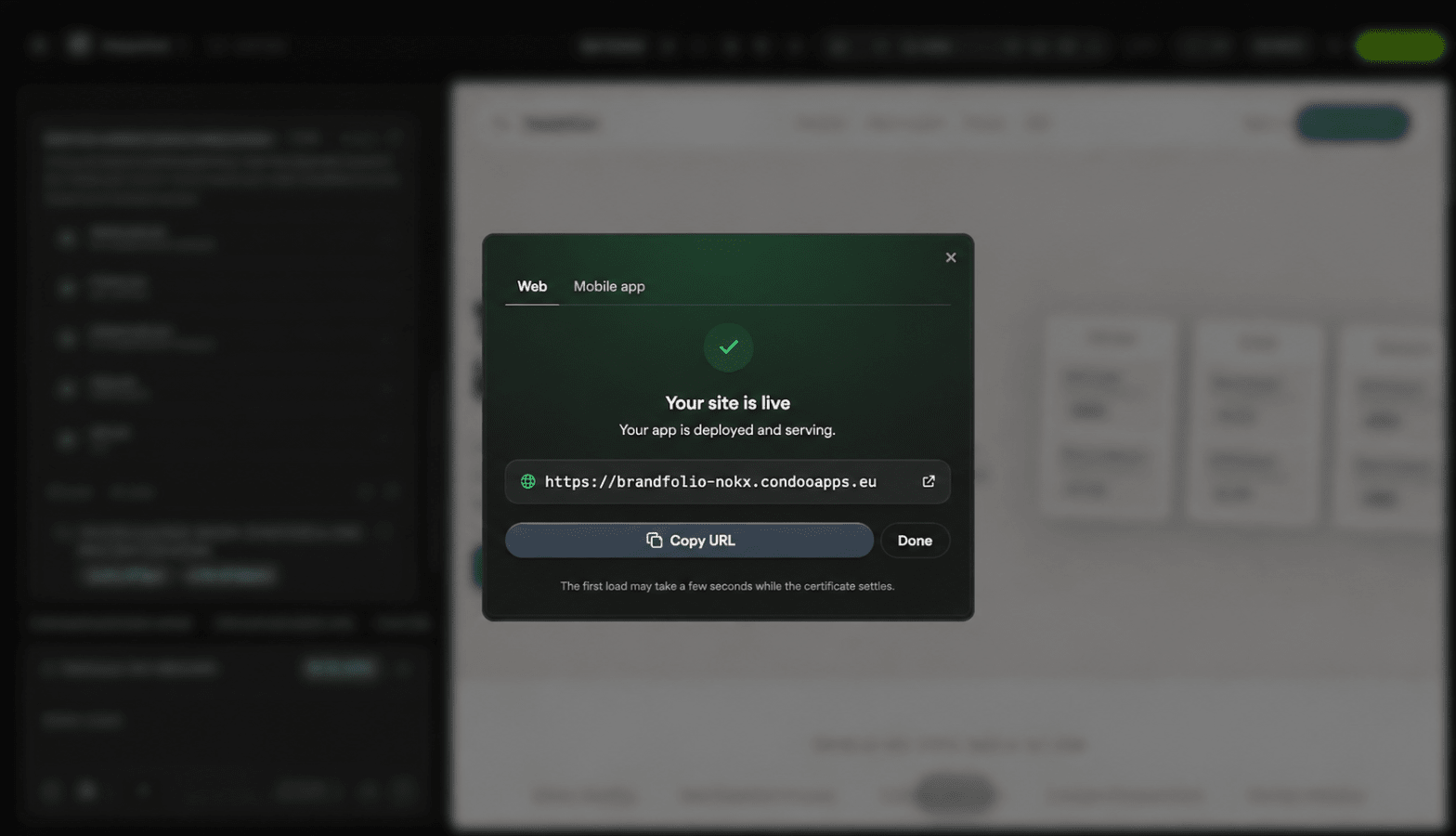
Once deployment succeeds, your application becomes available online.
Your Live Application
After deployment completes, condoo.Vibe provides access to your live application.
[INSERT SCREENSHOT: Successful deployment with live URL]
Open the live application and test it before sharing it with customers.
What condoo.Vibe Handles
Traditional deployment can involve several technical steps.
A developer may need to deal with things such as:
Application
    ↓
Build Process
    ↓
Server
    ↓
Hosting Configuration
    ↓
Deployment
    ↓
Domain
condoo.Vibe simplifies this into:
Application
    ↓
Publish
    ↓
Live
The goal is to let you focus on the product you're building rather than the mechanics of getting it online.
You Can Keep Building
Deploying your project doesn't mean development stops.
Suppose you launch a booking application today.
Version one might include:
- Landing Page
- Services
- Booking Form
- Customer Accounts
A few weeks later, you might ask condoo.Vibe:
Add recurring appointments and allow customers to manage their bookings from their dashboard.
You can build and review those changes before updating the live application.
Updating an Existing Deployment
When your project is already live, you don't need to create an entirely new application every time something changes.
The workflow is:
LIVE APPLICATION
       ↓
Make Changes
       ↓
Preview
       ↓
Test
       ↓
Publish
       ↓
UPDATED APPLICATION
For example:
Add a Testimonials section to the homepage.
condoo.Vibe can make the change while you continue working on the same project.
Once you're satisfied with the result, publish the updated version.
Review Before Redeploying
Just because deployment is easy doesn't mean every change should immediately go live.
For significant updates, use:
BUILD
 ↓
PREVIEW
 ↓
TEST
 ↓
PUBLISH
This is especially important when changing:
- Authentication
- Database structures
- Payments
- User permissions
- APIs
- Integrations
- Important workflows
- Existing customer functionality
Small Changes vs Major Changes
Not every update carries the same risk.
Changing:
Make the hero headline larger.
is very different from:
Change how subscription payments and user access are handled.
For simple visual changes, testing may be quick.
For major functional changes, test the complete workflow before deploying.
Deployment Status
During deployment, condoo.Vibe may show the current deployment state.
Depending on the state of the project, you may see that deployment is:
Preparing

Deploying

Successful

Failed
Wait until deployment completes before assuming the new version is available.
If deployment succeeds, open the live application and verify it.
If deployment fails, investigate the error before repeatedly trying to deploy again.
When Deployment Fails
Sometimes a project may fail to deploy.
A deployment failure doesn't necessarily mean your entire project is broken.
The issue could be related to:
- Build errors
- Application code
- Configuration
- Dependencies
- Environment requirements
- External integrations
- Recent changes
Start by checking any error information condoo.Vibe provides.
Use Debug Mode
If deployment fails, Debug Mode can help investigate the problem.
For example:
Expected: The project should deploy successfully when I click Publish.
Actual: Deployment starts but fails before the application goes live.
The project works correctly in Preview.
Error: [PASTE DEPLOYMENT ERROR]
Identify the cause of the deployment failure and fix it without changing the current application design or functionality unnecessarily.
Providing the actual error is much more useful than simply saying:
Deployment doesn't work.
Preview Works, Deployment Fails
This is an important distinction to tell condoo.Vibe.
For example:
The application works correctly in Preview, but deployment fails when I click Publish.
Then include the deployment error.
This helps condoo.Vibe focus on the difference between the development/preview environment and the deployed environment.
Deployment Succeeds but the App Doesn't Work
A successful deployment doesn't automatically guarantee that every application workflow is functioning correctly.
For example:
Deployment
   ↓
Successful
   ↓
Website Opens
   ↓
Login Fails
In this situation, deployment itself worked.
The problem is with a feature in the live application.
Tell condoo.Vibe exactly what works and what doesn't.
For example:
Deployment succeeds and the homepage loads correctly, but users can't sign in on the published application. Authentication works in Preview. Debug the production authentication issue.
Test After Every Important Deployment
After publishing a significant update, test the live application.
Check the most important workflows.
For example:
SaaS application
Test:
- Sign up
- Login
- Dashboard
- Core feature
- Billing
- Account settings
E-commerce application
Test:
- Products
- Cart
- Checkout
- Payment
- Order confirmation
Booking application
Test:
- Service selection
- Date selection
- Booking
- Confirmation
- Notifications
Website
Test:
- Navigation
- Forms
- Links
- Mobile layout
- Calls to action
Focus on the workflows that would matter most if they stopped working.
Deploying Client Projects
If you're using condoo.Vibe for client work, the same deployment workflow applies.
For example:
Build Client Project
       ↓
Preview
       ↓
Client Review
       ↓
Changes
       ↓
Final Approval
       ↓
Publish
       ↓
Live
You can use the condoo.Vibe-provided live URL or connect the client's custom domain when you're ready.
condoo.Vibe Hosting
Projects published directly through condoo.Vibe are hosted for you.
That means you can go from:
IDEA
 ↓
condoo.Vibe
 ↓
APPLICATION
 ↓
PUBLISH
 ↓
LIVE
without separately purchasing and configuring hosting for each project.
This is particularly useful when you're rapidly launching:
- Landing pages
- Business websites
- Internal tools
- MVPs
- SaaS products
- Client applications
- Prototypes
Using Your Own Hosting
You aren't required to use condoo.Vibe hosting if your workflow requires your own infrastructure.
You can export your project and deploy it yourself.
One option is:
condoo.Vibe
 ↓
Export Project
 ↓
Your VPS
Another is:
condoo.Vibe
 ↓
Export to GitHub
 ↓
Your Repository
 ↓
Your Deployment Workflow
 ↓
Your Infrastructure
condoo.Vibe Hosting vs Self-Hosting
The main difference is responsibility.
condoo.Vibe Hosting
condoo.Vibe handles the deployment infrastructure for the project.
You:
Build → Publish → Live
Self-Hosting
You take the exported project and manage deployment yourself.
Build
 ↓
Export
 ↓
Configure Infrastructure
 ↓
Deploy
 ↓
Maintain
Self-hosting can give technical teams more control, while condoo.Vibe hosting provides the simpler path to getting a project online.
Deployment and Custom Domains
Once your project is deployed, you may want users to access it through your own domain.
Instead of an condoo.Vibe-provided project URL, you might use:
yourcompany.com
or:
app.yourcompany.com
Connecting a domain doesn't mean you have to move the application away from condoo.Vibe hosting.
The domain simply becomes the address users use to access your deployed project.
We'll cover this on the next page.
Common Problems
Deployment is stuck
If deployment remains in progress for an unusually long time, check whether condoo.Vibe provides an error or status information.
Avoid repeatedly triggering additional deployments while another deployment is still processing.
Deployment failed
Copy the error information and use Debug Mode.
Tell condoo.Vibe whether the project works correctly in Preview.
My changes aren't appearing
Make sure the latest version was actually published.
If you've made changes but haven't published again, the live application may still be running the previous version.
The live application is different from Preview
Tell condoo.Vibe exactly what differs.
For example:
The dashboard layout works correctly in Preview, but the sidebar doesn't appear on the deployed application.
Specific differences make debugging easier.
A connector stopped working after deployment
Identify the connector and describe whether it works in Preview.
For example:
Resend works in Preview, but emails aren't being sent from the deployed application.
This gives condoo.Vibe a much narrower problem to investigate.
A Good Deployment Debug Prompt
When reporting deployment problems, include:
- Expected behavior
- Actual behavior
- Whether Preview works
- Deployment status
- Error message
- Recent changes
For example:
Expected: The application should deploy and open normally.
Actual: Deployment fails during the publishing process.
Preview: The complete application works in Preview.
Recent Change: I added the Stripe checkout workflow.
Error: [PASTE ERROR]
Find the cause of the deployment failure and fix it without changing unrelated functionality.
Deployment Checklist
Before deploying an important update:
- Review your latest changes
- Test in Preview
- Test authentication
- Test forms
- Test database operations
- Test integrations
- Test important permissions
- Check mobile layouts
- Remove test content
- Check for exposed secrets
- Publish
- Wait for deployment to complete
- Open the live URL
- Test critical workflows again
You're now ready to share the updated application.
One Click From Build to Live
condoo.Vibe is designed to reduce the distance between creating software and putting it in front of users.
BUILD
  ↓
REVIEW
  ↓
PUBLISH
  ↓
DEPLOY
  ↓
LIVE
You can then continue improving the application and deploy new versions as your product evolves.
Next: Custom Domains [Solo+]
Your application is live.
Now it's time to give it your own address.
On the next page, we'll cover Custom Domains, including:
- Connecting your domain
- Using a root domain
- Using a subdomain
- DNS configuration
- Domain verification
- Troubleshooting DNS
- Client domains
- What happens when you update your project