 condoo.Vibe
Calendly
Connect Calendly to add demo, consultation, and onboarding scheduling into the customer workflows you build with condoo.Vibe.
The Calendly connector lets you integrate scheduling experiences into applications you build with condoo.Vibe.
You can use Calendly for:
- Sales calls
- Product demos
- Consultations
- Discovery calls
- Customer onboarding
- Interviews
- Coaching sessions
- Client meetings
- Appointment scheduling
Instead of building an entire scheduling system from scratch, your application can use Calendly as part of the customer journey.
Connect Calendly. Define when users should schedule. condoo.Vibe builds it into your workflow.
What You Can Build
Calendly can become part of many different application workflows.
Demo booking
Let qualified leads schedule a product demo after submitting the enquiry form.
Consultation booking
Add a Book a Consultation button to the customer portal.
Customer onboarding
After a customer purchases the Pro plan, invite them to schedule their onboarding call.
Sales qualification
If a lead meets our qualification criteria, show them the option to book a discovery call.
Account management
Add a Schedule a Call button to the customer dashboard so customers can book time with their account manager.
The scheduling experience becomes part of the product rather than an isolated link.
Before You Start
You'll need a Calendly account with the event types and availability you intend to use.
For example, you might create:
15-Minute Discovery Call

30-Minute Product Demo

60-Minute Strategy Session
Configure your availability, meeting duration, and other scheduling preferences in Calendly.
Then condoo.Vibe can use that scheduling experience inside your application.
Connect Calendly to condoo.Vibe
Open your condoo.Vibe project and navigate to Connectors.
Find Calendly and select it.
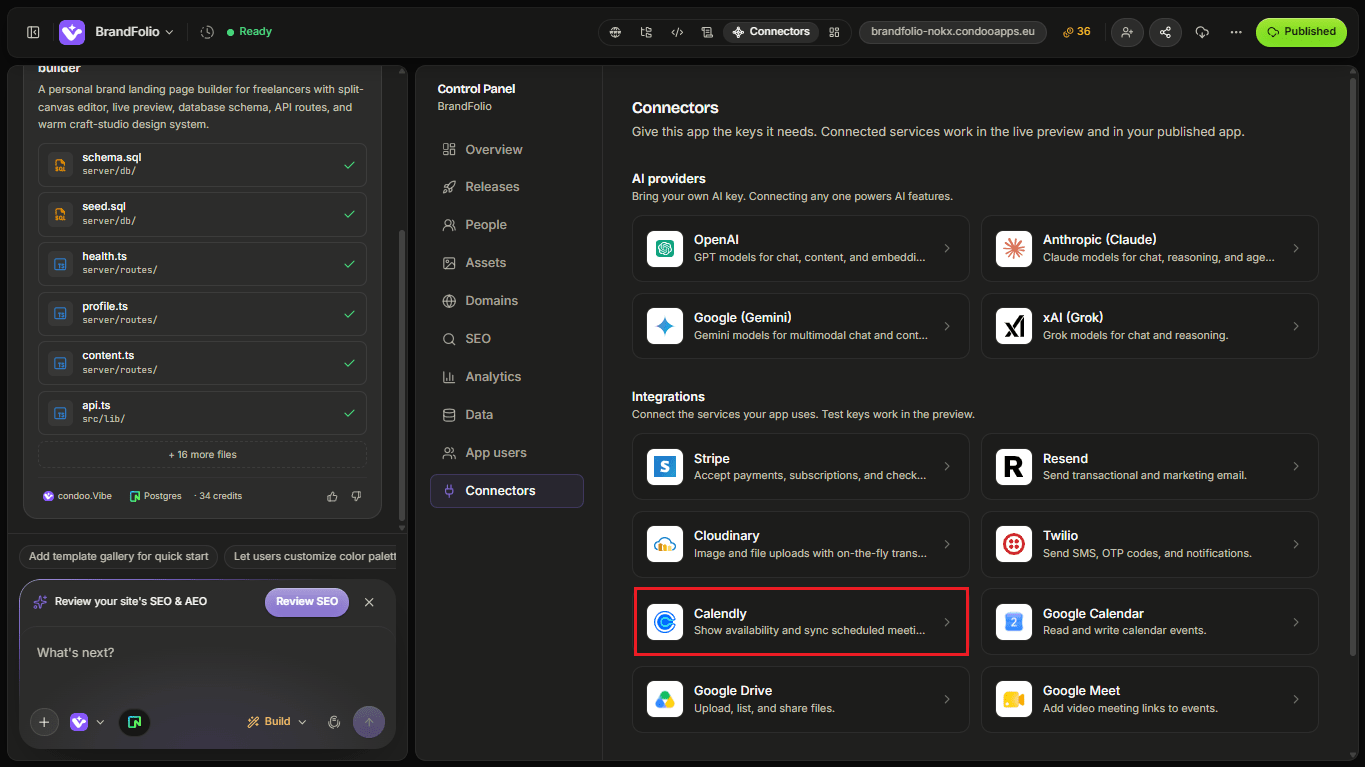
Follow the connection flow and provide the authorization or information requested by condoo.Vibe.
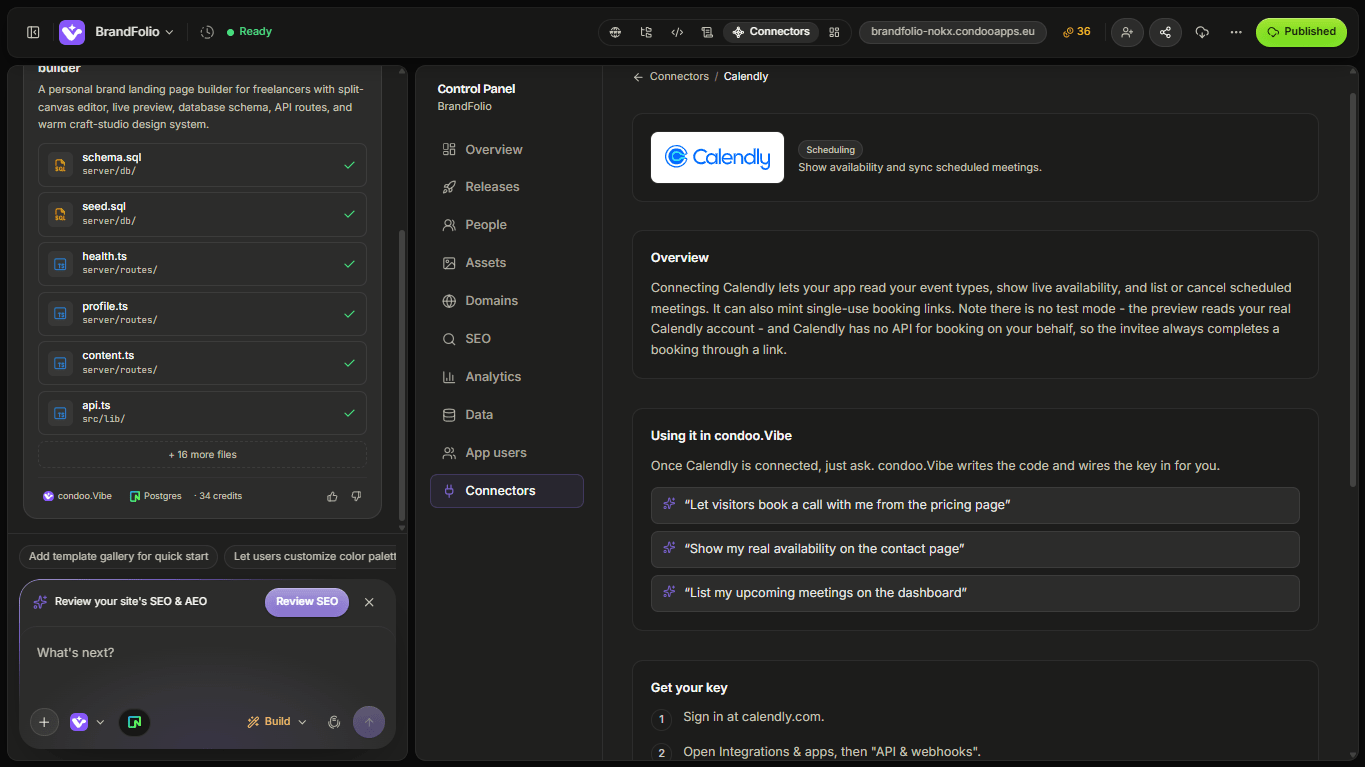
Once connected, you can ask condoo.Vibe to incorporate Calendly into your application workflows.
Build Your First Scheduling Experience
Suppose you're building a marketing agency website.
Tell condoo.Vibe:
Add a Book a Strategy Call button to the homepage. When clicked, allow visitors to schedule our 30-minute Strategy Call through Calendly.
The experience might look like:
Website Visitor
      ↓
Book a Strategy Call
      ↓
Calendly
      ↓
Select Available Time
      ↓
Enter Details
      ↓
Booking Confirmed
That's the simplest Calendly workflow.
But you can go much further.
Put Scheduling in the Right Place
Don't automatically place scheduling everywhere.
Think about when a user should be encouraged to book.
For example:
Landing Page
     ↓
Learn About Product
     ↓
View Pricing
     ↓
Still Have Questions?
     ↓
Book a Demo
Or:
Lead Form
    ↓
Qualification
    ↓
Qualified?
 ↙          ↘
Yes          No
 ↓            ↓
Book Call    Thank You
The scheduling step should support the customer journey.
Example: Product Demo
Suppose you're building a SaaS website.
You could tell condoo.Vibe:
Add a Book a Demo CTA to the navigation and pricing page. Use our Calendly Product Demo event. After someone schedules, show a confirmation page explaining what to expect during the demo.
This gives the customer context before and after scheduling.
Example: Qualified Lead Booking
Calendly becomes more powerful when combined with application logic.
Imagine your enquiry form asks:
- Name
- Company
- Company Size
- Budget
- Timeline
- Requirements
You could tell condoo.Vibe:
After someone submits the enquiry form, save the lead to the CRM. If their budget is $5,000 or higher, show them the option to schedule a strategy call through Calendly. Otherwise, show the standard confirmation page.
Conceptually:
Lead Submitted
      ↓
Save to Neon
      ↓
Check Qualification
     ↙       ↘
Qualified   Standard
    ↓          ↓
Calendly    Thank You
Now scheduling is part of a business workflow.
Example: Paid Consultation
Calendly can also work alongside Stripe.
Suppose you sell $250 consultations.
The desired experience might be:
Choose Consultation
        ↓
Stripe Checkout
        ↓
Payment Confirmed
        ↓
Schedule Session
        ↓
Calendly
You could tell condoo.Vibe:
Sell a Strategy Consultation for $250 through Stripe. Only after payment has been successfully confirmed should the customer receive access to schedule the consultation through Calendly.
This combines two connectors into one experience.
Example: Customer Onboarding
Suppose your SaaS includes onboarding calls for higher-tier customers.
You could ask:
After a customer subscribes to the Pro plan, show an onboarding checklist in their dashboard. The first step should allow them to schedule their onboarding call through Calendly.
The workflow becomes:
Agency Subscription
       ↓
Account Activated
       ↓
Onboarding
       ↓
Schedule Call
       ↓
Calendly
Scheduling is now part of the product's onboarding experience.
Example: Client Portal
You might want existing customers to schedule calls from inside their account.
For example:
Add a Schedule a Meeting option to the client portal. Customers should be able to book time with their assigned account manager.
You could display it alongside:
Account Manager

Sarah Johnson

[Send Message]

[Schedule Meeting]
This creates a more complete client experience.
Prefill Customer Information
If your application already knows who the customer is, you may not want them to repeatedly enter the same information.
Where supported by your scheduling implementation, you can ask condoo.Vibe to prefill relevant information.
For example:
When a logged-in customer opens the scheduling experience, use their saved name and email where possible.
This reduces friction.
Save Booking Information
Sometimes simply allowing the customer to schedule is enough.
Other applications may need to know that a meeting was booked.
For example, your CRM might display:
Lead

Acme Ltd.

Status
Demo Scheduled

Meeting
September 15, 2:00 PM
If your integration supports the required scheduling data, condoo.Vibe can incorporate it into the application's workflow.
For example:
When a qualified lead schedules a demo, update the lead status to Demo Scheduled and show the meeting information on the lead record.
Scheduling and Your CRM
Calendly can become particularly useful inside CRM applications.
Conceptually:
Lead
 ↓
Qualified
 ↓
Calendly Booking
 ↓
Meeting Scheduled
 ↓
CRM Updated
 ↓
Sales Pipeline
Instead of sales representatives manually updating the lead after every booking, the scheduling event can participate in the workflow where the integration supports it.
Scheduling + Email
You can also combine Calendly with Resend.
For example:
After a customer schedules their onboarding call, send them a welcome email containing the onboarding checklist and instructions for preparing for the call.
The workflow becomes:
Calendly Booking
       ↓
Application
       ↓
Resend
       ↓
Onboarding Email
Different connectors can work together around a single customer event.
Scheduling + SMS
You might also combine Calendly with Twilio.
For example:
Send the customer an SMS reminder before their scheduled consultation.
Conceptually:
Scheduled Meeting
       ↓
Reminder Time
       ↓
Twilio
       ↓
Customer
Make sure any automated messaging workflow follows the applicable consent and messaging requirements.
Event Types
Your business may have several Calendly event types.
For example:
Discovery Call
15 minutes

Product Demo
30 minutes

Strategy Consultation
60 minutes

Customer Onboarding
45 minutes
Tell condoo.Vibe which scheduling experience belongs in each part of your application.
For example:
Use the 30-minute Product Demo event on the public website and the 45-minute Customer Onboarding event inside the Agency customer dashboard.
This prevents different scheduling experiences from being mixed together.
Don't Confuse Calendly with Google Calendar
These connectors solve different problems.
Calendly is primarily a scheduling experience.
It helps people choose from available meeting times and book an appointment.
Google Calendar lets applications interact more directly with calendar data and events.
For example:
Need customers to choose
an available meeting time?

→ Calendly
Whereas:
Need your application to create,
read, or manage calendar events?

→ Google Calendar
We'll cover Google Calendar on the next page.
Handle Cancellations and Rescheduling
Meetings don't always happen as originally planned.
Customers may:
- Cancel
- Reschedule
- Choose another time
Your application should account for this if it stores scheduling information.
For example:
If a scheduled demo is cancelled, update the CRM so the lead no longer appears as having an upcoming demo.
Or:
If the meeting is rescheduled, display the new date and time on the lead record.
The exact behavior depends on the scheduling functionality available through your integration.
Time Zones
Scheduling applications often involve users in different locations.
Calendly can help manage scheduling across time zones, but your condoo.Vibe application should also display meeting information clearly.
For example:
September 15
2:00 PM WAT
or display the meeting in the user's local timezone where appropriate.
Avoid showing ambiguous times such as:
Meeting: 2:00 PM
when users may be in different regions.
Common Problems
Scheduling page doesn't open
Check:
- Calendly connection
- Event configuration
- Scheduling link or event reference
- Application interaction
Use Debug Mode if the condoo.Vibe interface isn't opening the expected scheduling experience.
Wrong event type opens
Tell condoo.Vibe:
The Book a Demo button currently opens our 15-minute Discovery Call. It should use the 30-minute Product Demo Calendly event. Fix the scheduling configuration without changing the CTA design.
No available times appear
This may be related to Calendly rather than your condoo.Vibe application.
Check your:
- Calendly availability
- Connected calendar
- Event configuration
- Scheduling limits
Booking works but CRM doesn't update
Separate the two parts of the workflow.
For example:
Calendly booking completes successfully, but the lead remains in Qualified instead of changing to Demo Scheduled. Debug the post-booking CRM update without changing the Calendly booking experience.
Meeting time is incorrect
Check whether the issue involves timezone conversion or how the application stores/displays the meeting time.
Tell condoo.Vibe exactly where the correct and incorrect values appear.
Debugging Calendly
A useful Debug Mode request looks like:
Expected: After a qualified lead submits the form, they should be able to schedule our Product Demo.
Actual: The lead is saved correctly, but clicking Schedule Demo doesn't open the Calendly scheduling experience.
The CRM and qualification logic are working.
Debug the Calendly portion without changing the existing lead form or qualification rules.
This isolates the scheduling problem.
Test Your Scheduling Workflow
Before publishing, test:
- Scheduling CTA
- Correct event type
- Available times
- Booking confirmation
- Mobile experience
- Time zones
- Logged-in users
- CRM updates, if applicable
- Cancellation behavior
- Rescheduling
- Paid booking restrictions, if applicable
- Follow-up notifications
Also test the complete journey as a customer rather than only checking whether the Calendly screen opens.
A Good Calendly Prompt
A strong scheduling request defines:
- Who can schedule?
- When can they schedule?
- Which event should they book?
- Where should scheduling appear?
- What happens after booking?
For example:
After a qualified lead submits our demo form, save them to the CRM and show the Calendly scheduling experience for our 30-minute Product Demo. After they schedule, show a confirmation page and update their CRM status to Demo Scheduled. Display their scheduled meeting on the lead record.
That's much stronger than:
Add Calendly.
Think in Scheduling Workflows
A useful mental model is:
TRIGGER
   ↓
ELIGIBILITY
   ↓
SCHEDULING
   ↓
BOOKING
   ↓
APPLICATION UPDATE
   ↓
FOLLOW-UP
Calendly handles scheduling.
Your condoo.Vibe application determines where scheduling belongs in the product and what happens around it.
Next: Google Calendar
Next, we'll look at Google Calendar.
Unlike Calendly, Google Calendar can be useful when your application needs to work directly with calendar events.
We'll cover examples such as:
- Creating calendar events
- Adding appointments to calendars
- Managing event information
- Connecting bookings to calendars
- Building calendar-driven workflows